H.264 HDMI IPTV Encoder: Complete Guide to Features, Setup, and Streaming
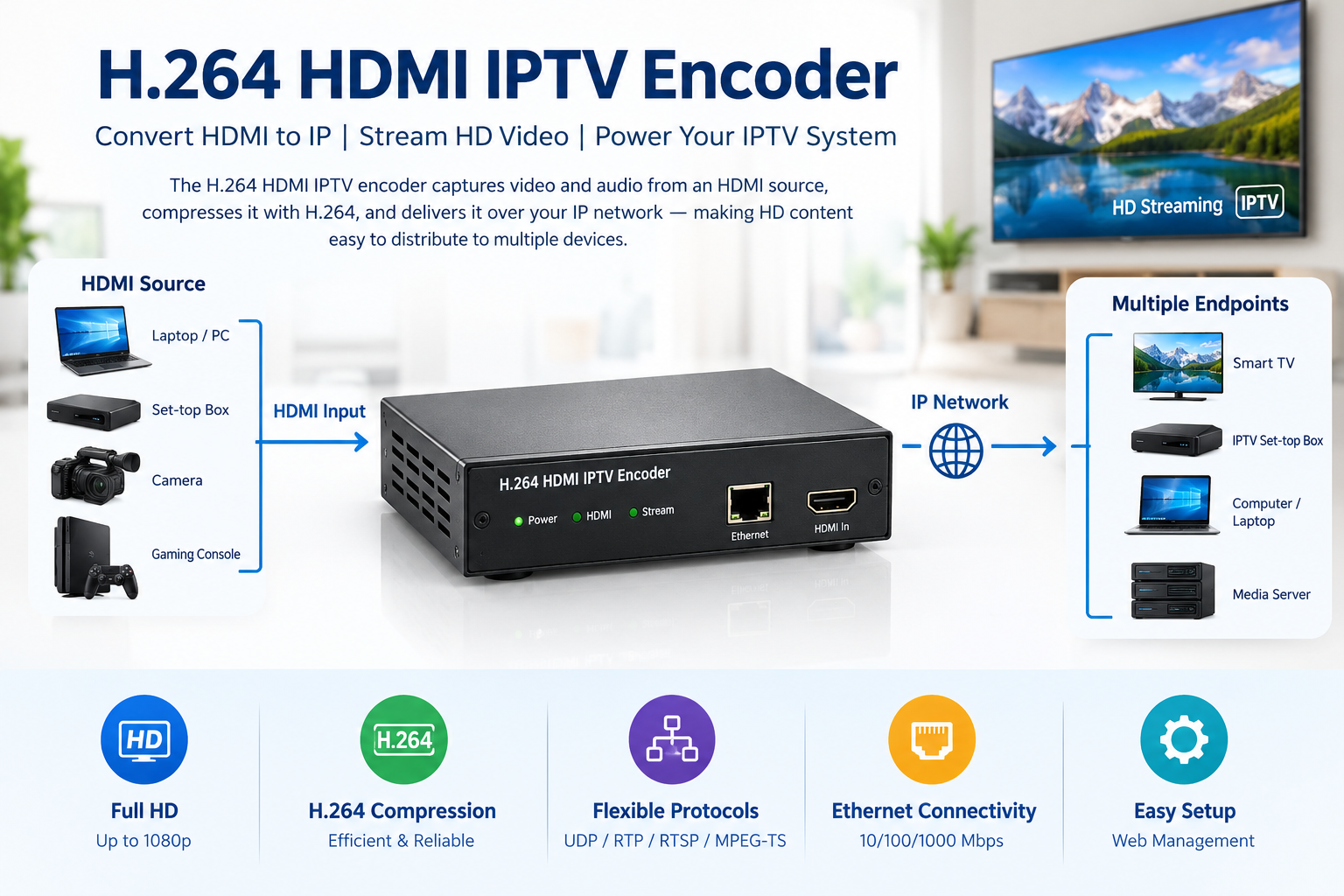
Quick definition: An H.264 HDMI IPTV encoder converts HDMI video and audio signals into compressed digital streams that can be distributed over an IP network. It enables organizations to deliver HD content to compatible IPTV receivers, smart TVs, media servers, and other authorized devices.
An H.264 HDMI IPTV encoder is a practical solution for businesses, hotels, educational institutions, and professional video environments that need to distribute high-definition content efficiently. By combining HDMI input with H.264 video compression and network streaming capabilities, this equipment makes it possible to integrate traditional video sources into modern IP-based distribution systems.
Whether you are building an IPTV installation, upgrading a conference room, or designing a centralized video distribution network, understanding how an H.264 HDMI IPTV encoder works will help you choose compatible equipment and achieve reliable streaming performance.
How Does an H.264 HDMI IPTV Encoder Work?
An H.264 HDMI IPTV encoder receives a video signal, compresses the content, packages the encoded data into a supported streaming format, and transmits it through an IP network. A compatible receiver or software application then decodes the stream for playback.
1. HDMI Signal Input
The process begins when a source device sends video and audio through an HDMI connection. Common HDMI sources include:
- Desktop computers and laptops
- Media players and set-top boxes
- Compatible cameras and video production equipment
- Conference room presentation systems
- Authorized satellite or cable receivers
- Digital signage players
The encoder must support the input resolution, refresh rate, color format, and audio characteristics of the connected source.
2. H.264 Video Compression
Uncompressed video requires substantial bandwidth. H.264, also known as Advanced Video Coding (AVC), reduces the amount of data needed to represent video while preserving useful visual detail.
The compression process uses techniques such as motion estimation, prediction, and transform coding. These methods reduce redundant information between video frames, making the resulting stream more manageable for network transmission.
3. Stream Packaging and IP Transmission
After compression, the encoder packages video and audio into a supported transport or streaming format. Depending on the model, supported technologies may include MPEG Transport Stream over UDP or RTP, RTSP, and other streaming methods.
The stream can then travel through a local area network, a dedicated video network, or a suitably configured wider network.
4. Video Decoding and Playback
At the receiving end, compatible software or hardware decodes the stream and displays the video. Possible destinations include IPTV set-top boxes, compatible smart TVs, computers, media servers, and video management platforms.
Compatibility depends on the encoder’s output protocols, codecs, resolution, and the capabilities of the receiving equipment.
Key Features of an H.264 HDMI IPTV Encoder
Different encoders offer different specifications. Before choosing an H.264 HDMI IPTV encoder, compare its video capabilities, compression settings, network interfaces, audio support, and management features.
Full HD Video Support
Many encoders support Full HD resolutions up to 1920 × 1080. Some models support 1080p at 60 frames per second, while others have lower frame-rate limits or more restricted input formats.
Always check the manufacturer’s specifications. HDMI connectivity alone does not guarantee support for every resolution or refresh rate. If your application requires 4K input, verify that the selected model explicitly supports the required format.
Efficient H.264 Compression
H.264 compression helps balance picture quality, bandwidth consumption, and system performance. Depending on the model, configurable parameters may include:
- Video bitrate
- Output resolution
- Frame rate
- Constant or variable bitrate
- H.264 profile and level
- Keyframe interval
Higher bitrates generally preserve more visual detail but consume more network bandwidth. Lower bitrates reduce bandwidth requirements but may introduce compression artifacts, especially in fast-moving scenes.
HDMI Audio and Video Processing
HDMI carries both video and audio. Depending on the encoder, embedded HDMI audio may be extracted and encoded into a supported audio format.
Check the supported audio codecs, sampling rates, and channel configurations. If your installation requires a separate audio input, confirm that the encoder provides the appropriate connection.
IP Network Connectivity
Most network-based HDMI encoders provide Ethernet connectivity. Available network features vary by model and may include static IP configuration, DHCP, multicast streaming, and remote management.
Multicast can distribute one stream efficiently to multiple receivers when the encoder and network support it. Unicast sends streams to individual destinations and can increase traffic when many receivers request the same content.
Flexible Streaming Protocols
Protocol compatibility is essential when integrating an H.264 HDMI IPTV encoder into an existing system.
- UDP: Provides low-overhead transport commonly used in managed video networks.
- RTP: Supports real-time media transport.
- RTSP: Provides mechanisms for controlling streaming sessions.
- MPEG Transport Stream: A container format commonly used in broadcast-style video distribution.
- HTTP-based streaming: Available on some models through supported streaming workflows.
These protocols serve different purposes. Confirm that your encoder and receiving platform support compatible streaming configurations.
Web-Based Configuration
Many professional encoders provide a browser-based management interface. Administrators can use it to configure network settings, video parameters, bitrates, stream destinations, and supported protocols.
Remote configuration can simplify maintenance, particularly when multiple encoders are deployed across different rooms, buildings, or facilities.
Benefits of Using an H.264 HDMI IPTV Encoder
1. Reduced Bandwidth Requirements
One of the primary advantages of an H.264 HDMI IPTV encoder is its ability to compress video before network transmission. This avoids the need to transport uncompressed HDMI video throughout the distribution network.
The required bitrate depends on the resolution, frame rate, scene complexity, encoder quality, and desired visual fidelity.
2. Centralized Video Distribution
IP-based video distribution allows organizations to deliver content from a central source to multiple authorized endpoints. Hotels can distribute information channels, while businesses can share presentations and training content across compatible displays.
The number of supported receivers depends on the encoder, network infrastructure, multicast capabilities, and IPTV platform.
3. Integration With Existing IP Infrastructure
An HDMI encoder can use suitable Ethernet infrastructure already available in an organization. However, the network must have sufficient capacity and appropriate configuration for video traffic.
Switch congestion, incorrect multicast settings, packet loss, and insufficient uplink capacity can affect streaming quality even when the encoder is functioning correctly.
4. Flexible Installation
Compact standalone encoders can be installed near an HDMI source, while rack-mounted equipment may suit larger professional environments. Choose a model that provides convenient access to connections, adequate ventilation, and suitable power management.
5. Cost-Effective HD Streaming
H.264 offers a practical combination of compression efficiency and compatibility for many HD applications. It is supported by a wide range of software and hardware, although specific profiles, resolutions, audio formats, and protocols must still match.
Common Applications of an H.264 HDMI IPTV Encoder
Hotels and Hospitality
Hotels can use IPTV systems to distribute welcome messages, information channels, event schedules, and other authorized content to guest-facing displays. An encoder can convert an HDMI source into a stream that a compatible IPTV platform distributes across the property.
Larger deployments should consider channel management, network segmentation, receiver compatibility, and access permissions.
Corporate Offices
Businesses can use HDMI encoding to distribute presentations, internal announcements, training sessions, and meeting-room content. Compatible endpoints can receive the stream through an authorized IP video platform.
Education and Training
Schools, universities, and training centers can distribute lectures, classroom presentations, and demonstrations over their internal networks. Important considerations include audio synchronization, end-to-end latency, and compatibility with the institution’s existing video systems.
Digital Signage
Digital signage installations use displays to communicate information in retail stores, offices, public spaces, and transportation facilities. An encoder can ingest an HDMI output from a signage player and deliver it to compatible network receivers.
This approach is particularly relevant when several displays need to receive the same source. Independent content on every screen may require a different system architecture.
Live Events and Conference Rooms
During meetings, conferences, and corporate events, an encoder can transmit presentations or compatible camera feeds to a local streaming platform. Check end-to-end latency if the installation requires near-real-time viewing.
Broadcast and Video Production
Production teams can use HDMI encoders to integrate selected video sources into IP-based monitoring, recording, or distribution workflows. Professional installations should evaluate stream stability, audio synchronization, supported transport protocols, and recovery behavior after network interruptions.
How to Choose the Right H.264 HDMI IPTV Encoder
Selecting the right device requires more than comparing prices. Your choice should reflect the source format, network environment, streaming protocol, receiver capabilities, and expected number of viewers.
1. Check the Supported HDMI Resolution
Identify the output resolution and refresh rate of your source before purchasing an encoder.
- 1280 × 720 for 720p HD applications
- 1920 × 1080 for Full HD applications
- 3840 × 2160 for supported 4K workflows
Check whether the device supports the required frame rate and can scale the input resolution when necessary.
2. Evaluate the Supported Bitrate
Bitrate affects picture quality and network usage. Static presentations may work well at lower bitrates than sports footage or detailed camera images.
Look for adjustable bitrate settings, supported rate-control modes, and recommended profiles. Do not choose a device solely because it advertises a high maximum bitrate.
3. Confirm the Output Protocols
Identify the protocols supported by your IPTV server, decoder, or media player. If the receiving platform expects MPEG-TS over UDP, verify that the encoder can produce a compatible stream.
Request documentation covering supported protocols, ports, multicast options, and configuration methods before making a purchase.
4. Review Ethernet and Network Requirements
Consider whether the encoder needs a 100 Mbps or Gigabit Ethernet interface. Also check static IP support, DHCP, VLAN requirements, multicast capabilities, and remote monitoring features.
Gigabit Ethernet can provide additional capacity, but the appropriate interface depends on the bitrate, number of streams, and overall network design.
5. Assess Audio Support
Confirm that the encoder supports the audio format produced by your source and that the receiving equipment can decode the resulting stream. Audio compatibility and synchronization should be tested before deployment.
6. Consider Reliability and Management
For business-critical applications, look for useful status indicators, remote configuration, firmware updates, secure administrative access, clear documentation, and manufacturer support.
7. Compare Total Cost of Ownership
The complete system may require receivers, network switches, HDMI cables, mounting hardware, installation, configuration, and ongoing maintenance. Compare the total deployment cost rather than the encoder’s purchase price alone.
H.264 HDMI IPTV Encoder vs. Other Video Encoding Options
H.264 vs. H.265
H.265, also known as High Efficiency Video Coding (HEVC), can achieve higher compression efficiency than H.264 in many circumstances. This can be useful when distributing high-resolution video or operating within a limited bandwidth budget.
H.264 remains attractive when broad compatibility is important. The right choice depends on image quality, network capacity, encoding performance, and decoder support.
| Feature | H.264 (AVC) | H.265 (HEVC) |
|---|---|---|
| Compression efficiency | Good | Generally higher at comparable quality |
| Compatibility | Broad support | Depends on device and platform support |
| Hardware requirements | Often modest | May require newer or more capable hardware |
| Typical applications | HD IPTV and general streaming | Bandwidth-sensitive HD and 4K workflows |
H.264 vs. MJPEG
MJPEG compresses individual video frames separately, whereas H.264 uses inter-frame prediction and other techniques to reduce redundancy. MJPEG can be useful in specialized imaging workflows, but it generally requires more bandwidth for comparable video dimensions and frame rates.
For continuous HD video distribution, H.264 is often a practical choice when network efficiency matters.
HDMI Encoder vs. HDMI Extender
An HDMI encoder converts video into a compressed network stream. An HDMI extender carries an HDMI signal over a supported physical link, such as twisted-pair cable or fiber, to a compatible receiver.
An extender is useful for connecting a source to a display over a defined link. An encoder is more appropriate when you need to integrate video into an IP streaming or distribution platform.
Understanding Bandwidth Requirements for HD IPTV
Network bandwidth is essential for reliable IPTV performance. If an encoded stream exceeds available network capacity, playback may freeze, stutter, or experience packet loss.
How Much Bandwidth Does an H.264 Stream Need?
There is no universal bitrate that guarantees a particular picture quality. Resolution, frame rate, motion, encoder quality, and compression settings all affect the required bandwidth.
| Video format | Illustrative starting bitrate |
|---|---|
| 720p at 30 fps | 2–4 Mbps |
| 1080p at 30 fps | 4–8 Mbps |
| 1080p at 60 fps | 6–12 Mbps |
These figures are planning examples, not guaranteed minimums. Fast-moving or highly detailed video may require more bandwidth. Test actual content and allow additional capacity for transport overhead and other network traffic.
Calculating Total Network Load
Suppose an installation uses eight encoders, each producing a 6 Mbps stream.
8 × 6 Mbps = 48 Mbps
This represents the combined source bitrate before network overhead and other traffic are considered.
If every stream is sent separately to multiple receivers using unicast, total traffic can increase. Multicast can deliver one stream to multiple subscribed receivers on appropriately configured infrastructure, reducing unnecessary duplication across shared network links.
Practical Network Optimization Tips
- Use wired Ethernet for fixed professional installations where possible.
- Measure actual bitrate and network utilization.
- Match encoding settings to available network capacity.
- Configure managed switches for the required traffic and multicast behavior.
- Monitor packet loss, jitter, and interface errors.
- Reserve sufficient capacity for other network applications.
Step-by-Step Setup Guide for an H.264 HDMI IPTV Encoder
Step 1: Prepare Your Equipment
Prepare an H.264 HDMI IPTV encoder, HDMI source, compatible cables, an Ethernet connection, a network switch or router if needed, and a compatible receiver or streaming platform.
Check the manufacturer’s documentation for power requirements, default network settings, supported video formats, and initial configuration instructions.
Step 2: Connect the HDMI Source
Connect the HDMI output of the source device to the encoder’s HDMI input. Turn on the source and confirm that it outputs a supported resolution.
If the encoder does not detect a signal, check the cable and source settings before troubleshooting the network.
Step 3: Connect the Encoder to the Network
Connect the encoder to the appropriate Ethernet network. Configure DHCP or a static IP address according to your network design and the manufacturer’s instructions.
If using a static address, verify the IP address, subnet mask, gateway, and any required DNS settings. Avoid address conflicts with existing devices.
Step 4: Access the Configuration Interface
Open the encoder’s management interface using the documented IP address or discovery method. Depending on the model, you may be able to configure resolution, bitrate, audio settings, output protocol, destination address, and stream name.
Step 5: Configure the Video Stream
Select a resolution and frame rate supported by both the source and the encoder. Begin with a moderate bitrate, test the picture quality, and adjust the settings according to your network conditions.
If the stream will be processed by an existing IPTV platform, match its required output format and protocol.
Step 6: Test Playback
Open the stream using a compatible receiver or software player. Check video continuity, audio synchronization, picture detail, startup delay, and performance during an extended test.
Step 7: Secure and Document the Installation
Record the IP address, stream configuration, firmware version, and receiver settings. Change default administrative credentials and restrict management access to authorized users.
Common Problems and Troubleshooting Solutions
Problem 1: No HDMI Input Signal
Possible causes: A damaged cable, an inactive source, an unsupported resolution, or a source compatibility issue.
Solution: Test another HDMI cable, confirm the source output settings, and check the encoder’s input-status information. If the source uses HDCP, ensure that the intended equipment and workflow support the applicable content-protection requirements.
Problem 2: The IPTV Stream Cannot Be Opened
Possible causes: An incorrect destination address, incompatible protocols, blocked ports, or incorrect multicast configuration.
Solution: Verify the stream URL or destination settings, test network connectivity, and confirm that the receiving device supports the selected format. Check firewall rules and multicast settings where applicable.
Problem 3: Video Freezes or Stutters
Possible causes: Insufficient network capacity, packet loss, excessive bitrate, unstable cabling, or an overloaded decoder.
Solution: Measure network utilization, inspect the encoder’s bitrate, and test a lower bitrate. If playback improves, investigate network capacity and configuration before replacing equipment.
Problem 4: Poor Picture Quality
Possible causes: A bitrate that is too low, incorrect scaling, a lower-resolution source, or unsuitable encoding settings.
Solution: Confirm the input and output resolutions, then increase the bitrate gradually and compare results using the same content.
Problem 5: Missing or Unsynchronized Audio
Possible causes: Incorrect source audio settings, an unsupported codec, or synchronization problems in the encoder or receiver.
Solution: Verify that the source outputs audio through HDMI, check the encoder’s audio configuration, and test with a compatible receiver.
Security and Best Practices for IPTV Encoding
Protect Administrative Access
Change default passwords, restrict management access, and use secure administrative connections where supported. Avoid exposing the encoder’s management interface directly to the public internet.
Separate Video Traffic When Appropriate
Dedicated VLANs can help separate IPTV traffic from business applications. Correct network segmentation can improve traffic management and limit unnecessary access, but it must be configured properly.
Keep Firmware Updated
Firmware updates may improve stability, fix compatibility issues, and address security vulnerabilities. Use official manufacturer releases and follow the recommended update procedure.
Respect Content Rights
Only encode and distribute content that you are authorized to use. HDMI connectivity does not grant permission to retransmit protected television channels, subscription content, or copyrighted broadcasts.
Frequently Asked Questions About H.264 HDMI IPTV Encoders
What is an H.264 HDMI IPTV encoder used for?
It converts HDMI video and audio into a compressed digital stream for distribution over a compatible IP network. Applications include corporate communications, education, digital signage, hospitality, and professional video distribution.
Does an H.264 HDMI IPTV encoder support Full HD?
Many models support 1080p Full HD, but supported resolutions and frame rates vary. Always check the manufacturer’s specifications before purchasing.
Can I use an H.264 HDMI IPTV encoder with a smart TV?
Yes, if the TV or an attached receiver supports the encoder’s streaming protocol and encoded formats. An HDMI input alone does not guarantee that a television can play network streams directly.
Can one encoder distribute video to multiple screens?
Yes. Depending on the encoder and network, video can be distributed through unicast or multicast. Multicast can be efficient for multiple receivers when the network and endpoints support it.
Is H.264 better than H.265 for IPTV?
H.264 provides broad compatibility, while H.265 can offer higher compression efficiency in many circumstances. The right option depends on bandwidth, image quality, and receiver compatibility.
Does an H.264 HDMI IPTV encoder require internet access?
No. Many installations work entirely over a local network. Internet access is needed only for functions that depend on external connectivity, such as cloud management or remote streaming.
What is the difference between an IPTV encoder and an IPTV decoder?
An encoder converts an incoming video source into a compressed stream. A decoder receives that stream and reconstructs the video for playback.
How do I choose the correct bitrate?
Start with the manufacturer’s recommendations for your resolution and frame rate. Test the actual content, evaluate picture quality, and measure network usage before finalizing the configuration.
Can I use an H.264 HDMI IPTV encoder for live streaming?
Yes, provided the encoder supports a streaming output compatible with the destination platform. Check protocol, container, audio, and latency requirements.
Does an H.264 HDMI IPTV encoder reduce latency?
Encoding adds processing delay, while network transport, buffering, and decoding add further delay. Actual end-to-end latency depends on the complete system configuration.
Recommended Resources for Further Reading
Explore these technical references to learn more about the technologies behind HDMI encoding and IP video distribution.
- ITU-T H.264 Recommendation — technical information about H.264 video coding.
- RFC 3550: RTP — documentation on real-time media transport.
- RFC 7826: RTSP 2.0 — technical details about streaming session control.
Related Articles
- Hardware IPTV Encoder: Features and Setup Guide
- Broadcast IPTV Encoder: A Complete Guide
- HDMI to IPTV Converter: How It Works
- IPTV Network Bandwidth Requirements
- How to Choose the Best IPTV Service
SEO note: Replace the example internal URLs above with the correct published URLs on your website before publishing.
Conclusion: Build a Reliable HD Video Distribution System
An H.264 HDMI IPTV encoder offers a practical way to convert HDMI sources into compressed IP video streams for compatible network distribution. Its combination of HD support, efficient compression, and flexible integration makes it useful for business, education, hospitality, and professional video applications.
To achieve reliable results, choose equipment that matches your source resolution, streaming protocol, audio format, bitrate, and receiving platform. Network capacity, security, and maintenance are equally important when building a dependable IPTV installation.
Ready to choose the right H.264 HDMI IPTV encoder for your project? Compare technical specifications, verify compatibility with your existing infrastructure, and test the configuration before deployment. Explore our related IPTV equipment guides, leave a comment with your questions, or contact our team for help selecting an encoding solution for your application.