HDMI IPTV: Complete Guide to IPTV Through HDMI in 2026
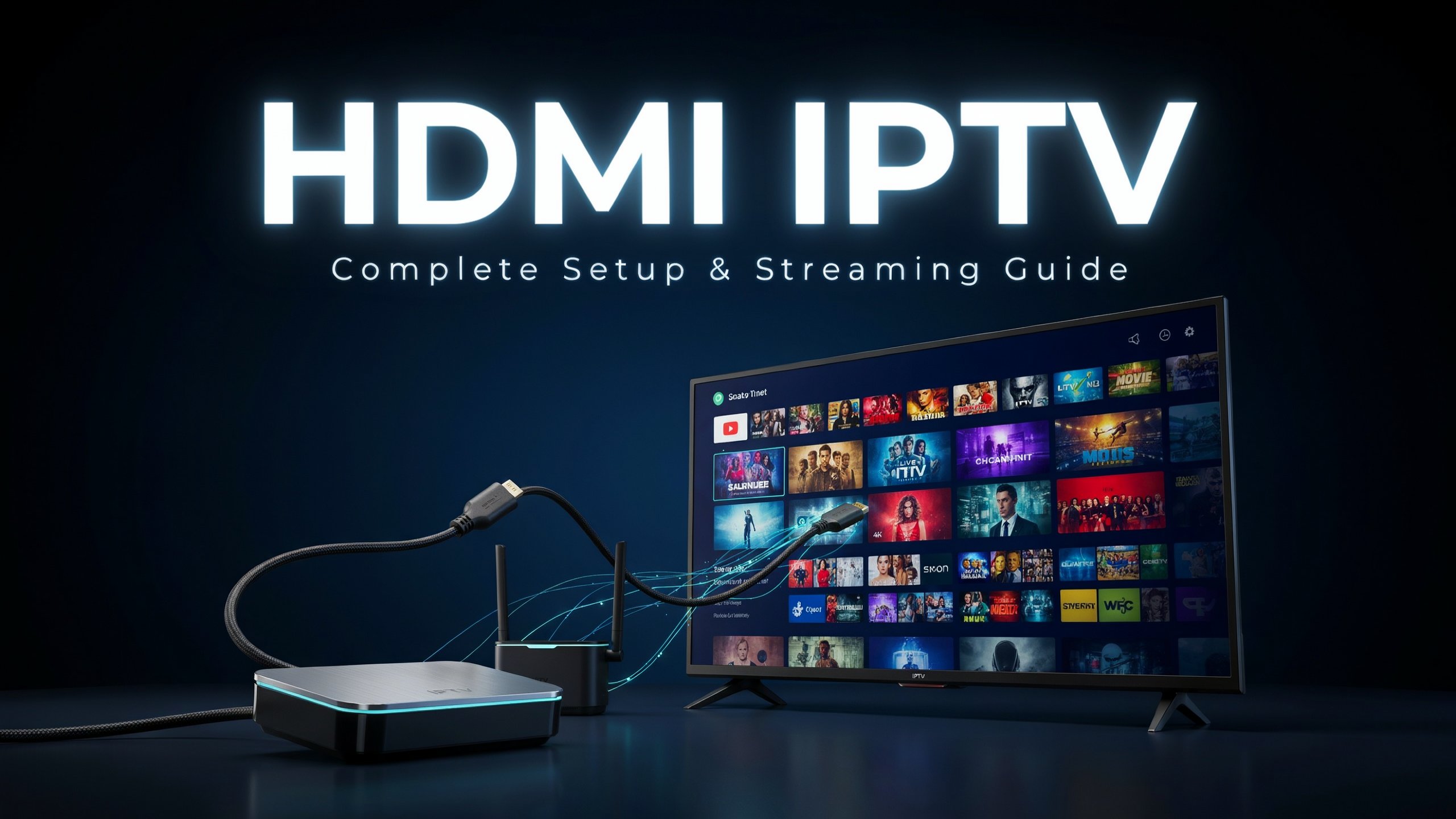
HDMI IPTV refers to using an HDMI connection to display IPTV content from a compatible device, such as an Android TV box, IPTV streaming device, Smart TV, computer, or other media player, on a television or monitor. HDMI carries high-quality digital video and audio through a single cable, making it one of the easiest ways to enjoy IPTV on a larger screen.
If you are new to IPTV and wondering how HDMI IPTV works, what equipment you need, or why your IPTV picture may look blurry or fail to display correctly, this guide explains everything step by step.
What Is HDMI IPTV? Quick Answer
HDMI IPTV means watching IPTV content from a compatible streaming device connected to your television through an HDMI cable. HDMI does not provide IPTV service by itself. Instead, it transfers digital video and audio from your IPTV device to your TV.
What Is HDMI IPTV?
The term HDMI IPTV is commonly used when people want to watch IPTV through a device connected to their television using an HDMI cable.
IPTV, or Internet Protocol Television, delivers television content through an internet connection rather than traditional terrestrial, satellite, or cable broadcasting. An IPTV service normally requires an internet connection and a compatible application or streaming device.
HDMI has a different role. HDMI (High-Definition Multimedia Interface) is a physical connection standard designed to transmit digital video and audio from one device to another.
For example, a typical IPTV setup might look like this:
Internet → IPTV device → HDMI cable → TV
The IPTV device receives the stream through the internet, processes the video, and sends the resulting picture and sound to your television through HDMI.
This distinction is important because an HDMI cable does not contain IPTV channels or provide an internet connection.
How HDMI and IPTV Work Together
A typical setup includes:
- A reliable internet connection
- An IPTV subscription or legal streaming source
- An IPTV-compatible application or device
- An HDMI cable
- A television or monitor with an HDMI input
Once everything is connected, you select the appropriate HDMI input on your television and open your IPTV application.
For more information, read our guide explaining how IPTV works.
How Does HDMI IPTV Work?
Understanding how HDMI IPTV works is relatively simple.
First, your router provides internet access to your IPTV device. The device connects to your IPTV application or authorized streaming platform and requests the selected video stream.
The device then decodes the video and audio data.
Finally, the decoded content is transmitted through HDMI to your television.
The process can be summarized as:
- Your router provides an internet connection.
- Your IPTV device connects to the streaming service.
- You select a channel, movie, or program.
- The IPTV application receives the stream.
- The device decodes the content.
- HDMI transfers the video and audio to your TV.
- Your television displays the content.
This is why HDMI can be an important part of an IPTV setup, but it is not the IPTV service itself.
Does HDMI Improve IPTV Quality?
HDMI can help you get the full digital video and audio output supported by your source device and television.
However, HDMI cannot magically transform a low-quality IPTV stream into 4K or Full HD.
Your final picture quality depends on several factors:
- The original stream quality
- Your IPTV provider or streaming platform
- Internet stability
- Your streaming device
- TV resolution
- HDMI compatibility
- Video settings
- Network congestion
For example, if the source stream is only 720p, connecting it with an HDMI cable will not turn it into native 4K content.
What Do You Need for an HDMI IPTV Setup?
Setting up HDMI IPTV does not require complicated equipment. A basic configuration can use several simple components.
1. A Television With HDMI
Most modern televisions include one or more HDMI inputs.
Look around the back or side of your TV for labels such as:
- HDMI 1
- HDMI 2
- HDMI 3
- HDMI ARC
- HDMI eARC
You will connect your IPTV device to one of these ports.
2. An IPTV-Compatible Device
You need something capable of running your IPTV application or streaming platform.
Common examples include:
- Android TV boxes
- Google TV devices
- Smart TV platforms
- Streaming media players
- Compatible computers
- Certain game consoles
- Other supported streaming hardware
The best option depends on the applications you want to use and the capabilities of your television.
3. An HDMI Cable
An HDMI cable connects the streaming device to the television.
For most normal Full HD IPTV usage, a standard modern HDMI cable is sufficient. For higher resolutions and refresh rates, make sure the cable and connected devices support the required HDMI specification.
4. Internet Connection
IPTV requires internet connectivity. For a smoother experience, focus not only on download speed but also on:
- Connection stability
- Latency
- Wi-Fi signal strength
- Network congestion
- Router performance
A fast but unstable connection can still result in buffering.
5. IPTV Application or Service
Finally, you need a legitimate IPTV application and authorized content source. The application is responsible for accessing and displaying the available content.
HDMI IPTV Setup: Step-by-Step Guide
Setting up HDMI IPTV is usually straightforward.
Step 1: Connect Your IPTV Device to the Internet
Connect your streaming device to your router using Wi-Fi or Ethernet.
If your router is close enough, Ethernet can provide a more consistent connection than congested wireless networks.
Step 2: Connect the HDMI Cable
Plug one end of the HDMI cable into the HDMI output of your IPTV device.
Connect the other end to an HDMI input on your television.
Example: Streaming device HDMI OUT → TV HDMI 1
Step 3: Select the Correct TV Input
Turn on your television and use your remote control to select the HDMI input you used.
If you connected the device to HDMI 2, select HDMI 2 on the TV.
Step 4: Configure the IPTV Application
Open your authorized IPTV or streaming application. Depending on the application, you may need to sign in or enter the credentials provided by your service.
Step 5: Test Video and Audio
Play a channel or video and check:
- Picture quality
- Audio
- Buffering
- Resolution
- Connection stability
If everything works correctly, your HDMI IPTV setup is ready.
HDMI IPTV vs Smart TV IPTV
One common question is whether you should use an external HDMI IPTV device or install the application directly on your Smart TV.
Both approaches can work well.
IPTV Directly on a Smart TV
If your television supports the application you want, you may not need an external device.
Advantages include:
- Fewer cables
- Simple installation
- No additional streaming box
- Easy remote control integration
However, Smart TV hardware and software can vary significantly between brands and models.
IPTV Through an HDMI Device
Using an external device connected through HDMI provides another option.
Advantages can include:
- More processing power
- Wider application compatibility
- Easier hardware upgrades
- Potentially smoother navigation
- Additional streaming features
This can be especially useful if your TV is older or its built-in operating system does not support your preferred IPTV application.
HDMI IPTV on Android TV Boxes
Android TV boxes are frequently used for IPTV because they can support a wide range of streaming applications.
The basic setup is simple:
Internet → Android TV box → HDMI → TV
After connecting the box, you can install compatible applications through the appropriate official app store or use applications supplied through legitimate channels.
When choosing an Android TV device, consider:
- Processor performance
- RAM
- Storage
- Operating system version
- 4K support
- Wi-Fi capabilities
- Ethernet support
- HDMI version
- Official software support
A more expensive box is not automatically better for IPTV. Stability, software support, and compatibility can be more important than raw specifications.
HDMI IPTV and 4K Streaming
4K IPTV is one of the most searched topics among users who want better picture quality.
4K generally refers to a resolution of approximately 3840 × 2160 pixels for consumer television.
However, several components need to support 4K for you to actually benefit from it.
Your setup may include:
- 4K source content
- 4K-capable IPTV application or device
- Compatible HDMI connection
- 4K television
- Sufficient internet performance
If any part of the chain does not support the required resolution, you may receive a lower-resolution image.
Does an HDMI Cable Determine 4K Quality?
The cable itself does not create 4K video.
Instead, the cable must have sufficient bandwidth and compatibility for the video format being transmitted.
For demanding 4K formats, using a properly certified high-speed HDMI cable can help avoid connection problems.
If your 4K picture frequently disappears, flickers, or displays an error, testing another compatible HDMI cable can be useful.
Why Is My HDMI IPTV Picture Bad?
If your IPTV picture looks blurry, pixelated, or unstable, the HDMI cable may not be the main problem.
There are several possible causes.
Poor IPTV Stream Quality
The original stream may be low quality. If the source itself is compressed or low resolution, changing the HDMI cable will not improve the source.
Unstable Internet
Buffering and quality drops can occur when your internet connection fluctuates.
Try:
- Restarting your router
- Using Ethernet
- Moving closer to the Wi-Fi router
- Reducing other network activity
- Testing the connection at another time
Incorrect Resolution Settings
Your streaming device may have an incorrect display resolution. Check whether your device is configured appropriately for your television.
HDMI Cable or Port Problem
A damaged cable or problematic HDMI port can cause:
- No picture
- Flickering
- Intermittent signal
- Audio problems
- Resolution limitations
Try another HDMI port or a known-good compatible cable.
Overheating
Some streaming boxes can become hot during extended use. Excessive heat may cause performance problems, freezing, or unexpected restarts.
Make sure the device has sufficient ventilation.
HDMI IPTV Troubleshooting Guide
If your HDMI IPTV setup is not working correctly, follow these troubleshooting steps.
Problem 1: No Signal
If the TV displays “No Signal”:
- Confirm the IPTV device is powered on.
- Check both ends of the HDMI cable.
- Select the correct HDMI input.
- Try another HDMI port.
- Restart the streaming device.
- Test another compatible HDMI cable.
Problem 2: Picture but No Sound
Check:
- TV volume
- TV mute settings
- Streaming device audio settings
- HDMI connection
- Audio output configuration
If your television is connected to an external sound system, also check the soundbar or receiver.
Problem 3: IPTV Keeps Buffering
Buffering is usually related to the network or stream rather than HDMI.
Try:
- Ethernet instead of Wi-Fi
- Restarting your router
- Closing unnecessary applications
- Reducing simultaneous network usage
- Checking whether other devices are consuming significant bandwidth
For more troubleshooting information, read our guide to fixing IPTV buffering.
Problem 4: IPTV Looks Blurry
Check the resolution settings on both your streaming device and TV.
Also verify that the source content actually supports the resolution you expect.
A video labeled as “HD” does not necessarily mean every part of the streaming chain is delivering native Full HD quality.
HDMI IPTV vs Wi-Fi: What Is the Difference?
These technologies perform completely different jobs.
Wi-Fi connects your IPTV device to the internet.
HDMI connects your IPTV device to your television.
A typical setup may therefore use both:
Router → Wi-Fi → IPTV device → HDMI → TV
Alternatively, you can replace Wi-Fi with Ethernet:
Router → Ethernet → IPTV device → HDMI → TV
This is why comparing HDMI and Wi-Fi directly is not quite accurate. One handles the network connection, while the other handles the local transmission of video and audio between devices.
Is Ethernet Better Than Wi-Fi for HDMI IPTV?
For many IPTV users, Ethernet can be preferable when it is practical.
A wired connection can provide:
- More consistent connectivity
- Less wireless interference
- Lower variability
- Reliable performance during long viewing sessions
Wi-Fi can still work very well, particularly with a modern router and a strong signal.
If your IPTV stream frequently buffers while your internet subscription is otherwise fast enough, testing Ethernet can help determine whether wireless instability is responsible.
Choosing the Right HDMI Port
Modern TVs often include multiple HDMI ports, and they are not necessarily identical.
One port might support features that another does not.
Depending on the television, you may find:
- Standard HDMI inputs
- HDMI ARC
- HDMI eARC
- High-bandwidth HDMI inputs
For ordinary IPTV viewing, you generally just need a compatible HDMI input.
If you are also connecting a soundbar, AV receiver, or other equipment, ARC or eARC may become relevant for audio.
Always check your television’s manual for the exact capabilities of each port.
How to Get Better HDMI IPTV Picture Quality
Getting better IPTV quality involves optimizing the entire setup rather than focusing exclusively on the HDMI cable.
Use a Stable Internet Connection
A stable connection is essential for streaming. If possible, use Ethernet for your IPTV device.
Select the Correct Display Resolution
Check your device’s display settings and select an appropriate resolution supported by your TV.
Keep Your Device Updated
Firmware and application updates can improve:
- Compatibility
- Stability
- Security
- Performance
Avoid Overheating
Place your streaming device somewhere with adequate airflow. Do not cover ventilation openings.
Use a Good HDMI Cable
Use a compatible, properly certified cable appropriate for the resolution and refresh rate you are using.
There is usually no reason to spend excessive amounts on an HDMI cable for a normal IPTV setup.
Can You Use HDMI IPTV on a Laptop?
Yes. A laptop can output video to a television through HDMI if it has a compatible HDMI output.
The basic configuration is:
Laptop → HDMI → TV
You can then use an authorized IPTV application or streaming website on the laptop and display it on the larger television.
However, be aware that HDMI ports on computers are often designed primarily as outputs.
Connecting an IPTV box’s HDMI output directly into a laptop’s HDMI output generally will not work because the laptop does not necessarily have an HDMI input.
Can HDMI IPTV Work Without Internet?
No, not for IPTV content that is delivered over the internet.
HDMI itself does not provide internet access.
If your IPTV service depends on online streaming, the source device must have an internet connection.
However, HDMI can still transmit locally stored videos or other offline content without an internet connection.
For internet-based IPTV, the basic requirements remain:
Internet + compatible streaming device/application + HDMI connection + TV
Does HDMI IPTV Work on Any TV?
Not necessarily.
The television needs an appropriate video input, normally HDMI for this type of setup.
Most modern televisions have HDMI ports, but older televisions may use different connections.
If your TV does not have HDMI, you may need compatible conversion equipment, although this can introduce limitations depending on the desired resolution and signal format.
Before purchasing equipment, check the available inputs on your TV.
Common HDMI IPTV Mistakes to Avoid
Mistake 1: Blaming the HDMI Cable for Buffering
HDMI carries the signal from the device to the TV. It does not normally cause internet buffering.
If the picture pauses while the audio and video are streaming, investigate your network and source first.
Mistake 2: Assuming HDMI Creates 4K
A cable cannot upgrade low-resolution content to 4K.
Your source, device, HDMI connection, and TV all need to support the desired format.
Mistake 3: Ignoring Device Performance
An outdated or underpowered streaming device can struggle with modern applications and high-resolution streams.
Mistake 4: Using Weak Wi-Fi
A streaming device hidden behind a TV may sometimes have a poorer wireless signal than expected.
Positioning and network configuration can matter.
Mistake 5: Buying Expensive HDMI Cables Without Checking Compatibility
More expensive does not automatically mean better. Look for appropriate specifications and certification rather than simply choosing the highest-priced cable.
Is HDMI IPTV Legal?
HDMI itself is simply a technology for transferring digital audio and video between compatible devices.
The legality of IPTV depends on the content being accessed and whether the provider has the necessary rights or authorization to distribute that content.
There are many legitimate IPTV and streaming services.
When choosing an IPTV service, look for transparency about:
- Content licensing
- Company information
- Terms of service
- Privacy practices
- Customer support
- Payment policies
Avoid services that clearly advertise unauthorized access to copyrighted channels or content.
For general information about copyright and digital media, consult an appropriate government or copyright authority in your country, such as official copyright information.
How to Choose an IPTV Device for HDMI
If you are purchasing a device specifically for IPTV, consider more than just price.
Performance
Choose hardware capable of smoothly decoding the video formats you plan to watch.
Operating System
Make sure the device supports the applications you intend to use.
Resolution Support
If you own a 4K television, consider a device capable of outputting the resolution you need.
Connectivity
Ethernet can be valuable for users who prioritize a stable connection.
HDMI Compatibility
Check the device’s HDMI specifications against your television.
Software Updates
Long-term software support can be more valuable than having the newest processor.
HDMI IPTV Setup Checklist
Before contacting support or replacing equipment, go through this checklist:
- ✓ TV is powered on
- ✓ IPTV device is powered on
- ✓ HDMI cable is securely connected
- ✓ Correct HDMI input is selected
- ✓ IPTV device has internet access
- ✓ IPTV application is working
- ✓ Account or subscription is active
- ✓ Display resolution is configured correctly
- ✓ HDMI cable is compatible
- ✓ Device is adequately ventilated
- ✓ Router connection is stable
- ✓ Other high-bandwidth devices are not overwhelming the network
This simple checklist can solve many common HDMI IPTV problems.
Frequently Asked Questions About HDMI IPTV
What does HDMI IPTV mean?
HDMI IPTV generally refers to watching IPTV content through an IPTV-compatible device connected to a television using HDMI. HDMI transfers the digital video and audio from the device to the TV.
Does HDMI give you IPTV channels?
No. HDMI is a connection technology. It does not provide television channels, internet access, or an IPTV subscription.
Is HDMI better than Wi-Fi for IPTV?
They are not direct alternatives. Wi-Fi connects your streaming device to the internet, while HDMI connects the streaming device to your TV.
Can HDMI support 4K IPTV?
Yes, compatible HDMI connections can support 4K video. However, the IPTV source, streaming device, cable, and TV must all support the required format.
Why does my IPTV buffer even though HDMI is connected?
Buffering is generally related to the internet connection, streaming source, device performance, or network congestion rather than the HDMI connection.
Should I use Ethernet or Wi-Fi for IPTV?
Both can work. Ethernet often provides a more consistent connection, while modern Wi-Fi can provide excellent performance when the signal is strong and the network is properly configured.
Can I connect an IPTV box directly to my laptop?
Usually, no. Most laptop HDMI ports are outputs rather than inputs. An IPTV box normally connects directly to a TV or compatible display.
Does a more expensive HDMI cable improve IPTV?
Not necessarily. The important factor is whether the cable meets the required specifications for your resolution and signal format.
Can I watch IPTV without HDMI?
Yes. If your Smart TV supports the appropriate application, you may be able to watch IPTV directly on the television without an external HDMI device.
Final Thoughts on HDMI IPTV
HDMI IPTV is a simple and effective way to connect an IPTV-compatible streaming device to a television. The key point to remember is that HDMI and IPTV serve different purposes.
IPTV delivers content over an internet connection, while HDMI transfers the resulting video and audio from your streaming device to your television.
A reliable setup therefore depends on the entire chain: a stable internet connection, capable streaming hardware, a compatible application, appropriate display settings, and a suitable HDMI connection.
If you are experiencing poor IPTV quality, do not immediately assume that the HDMI cable is responsible. Check your internet stability, streaming source, device performance, resolution settings, and HDMI ports first.
Ready to Improve Your IPTV Experience?
If you’re looking for a reliable way to enjoy IPTV on your TV, visit IPTV8KServices.com to learn more about our IPTV service and available options.
Check your device compatibility, optimize your connection, and explore our latest IPTV guides for more tips and troubleshooting advice.